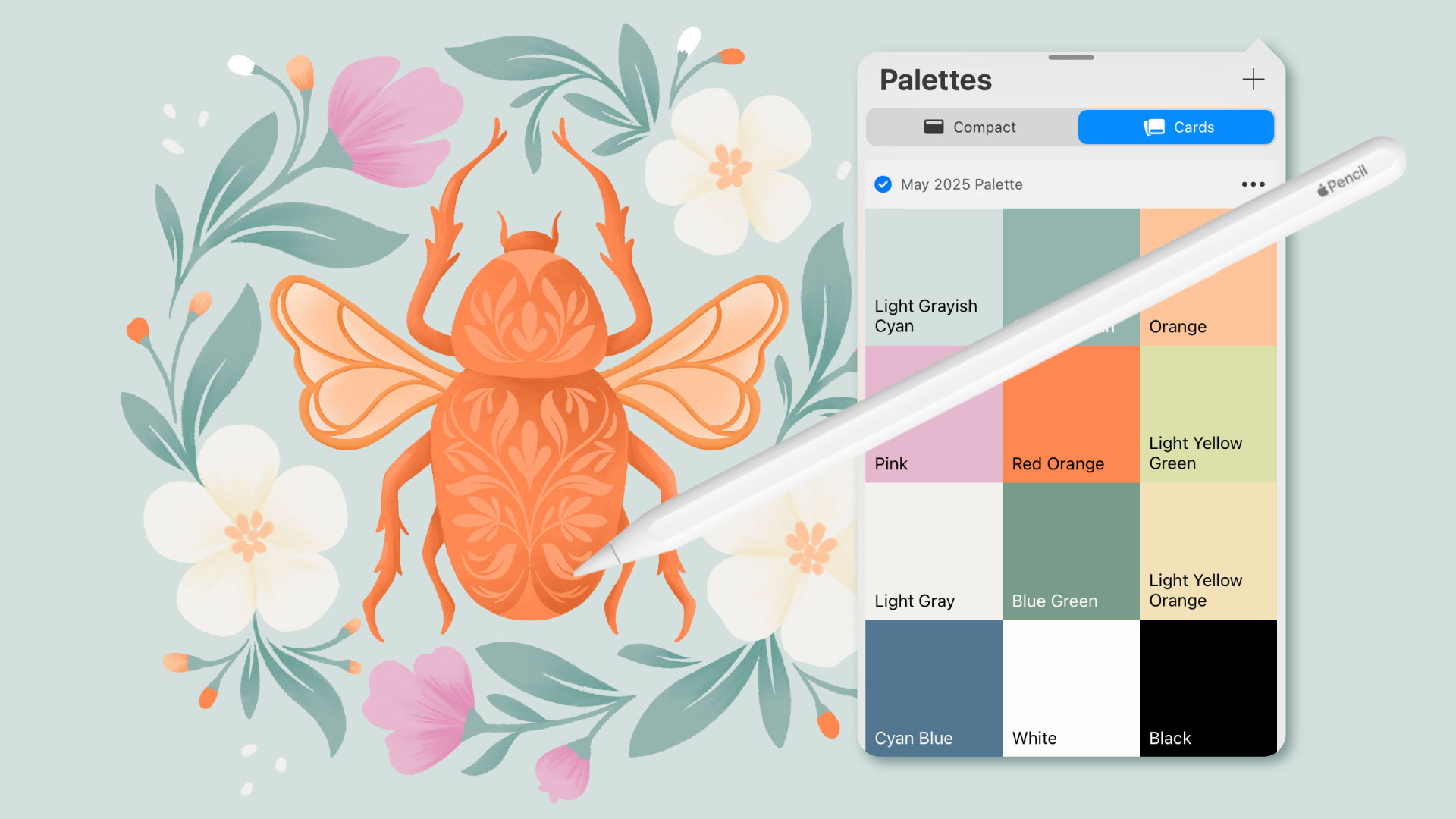
When I host online workshops, I often include a free color palette with the class materials and resources. To make the colors accessible for everyone, I usually share a JPEG image listing the HEX codes for each color, but if you’re working in Procreate like I am, it’s really handy to have the palette loaded right into the app’s Palette Library. If you’re new to Procreate or you’ve never imported swatches to the Palette Library, don’t worry – it’s quite simple! Here are step by step instructions…
Step 1:
First, you will need to download the .swatches file.
Downloading on the iPad: For instructions on how to download and save files directly to your iPad, watch this two-minute tutorial.
Downloading on desktop: When you click the download button in the email you received, a zipped file will automatically start to download. The file should appear in your Downloads folder. Double tap to unzip then save the folder where you can access it on your iPad (for example, on iCloud or Dropbox).
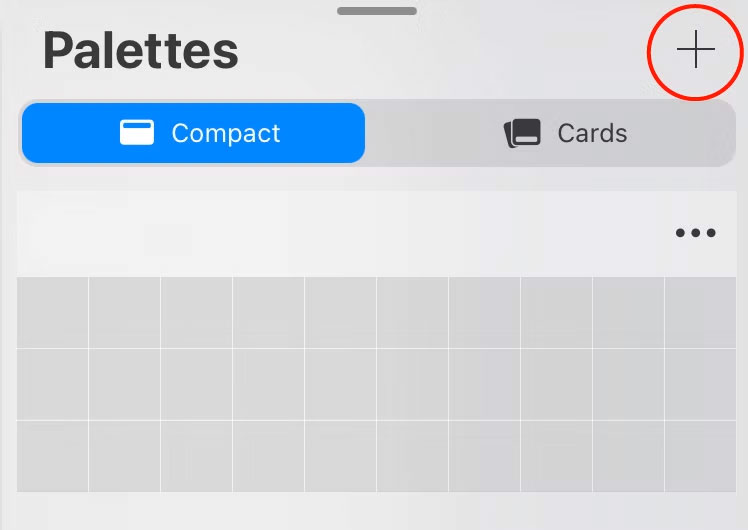
Once you’ve downloaded and saved the .swatches file, go to Procreate, open a new canvas, then tap on the plus sign in the Palette Library.
Step 2:
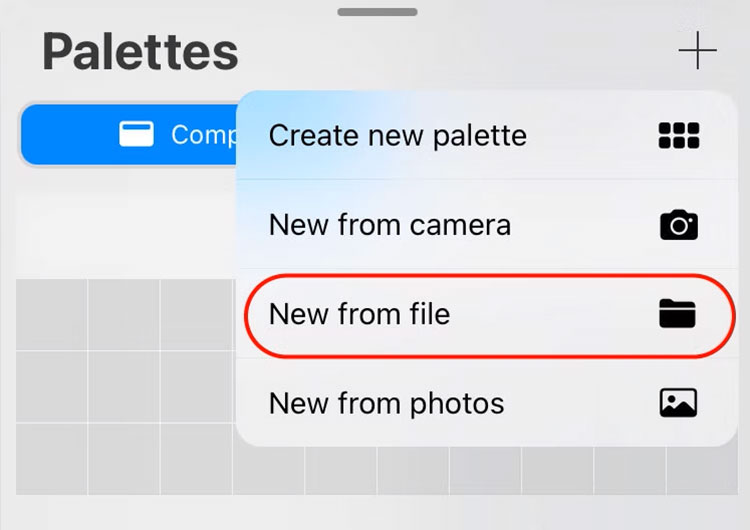
Tap ‘New from file’
Step 3:
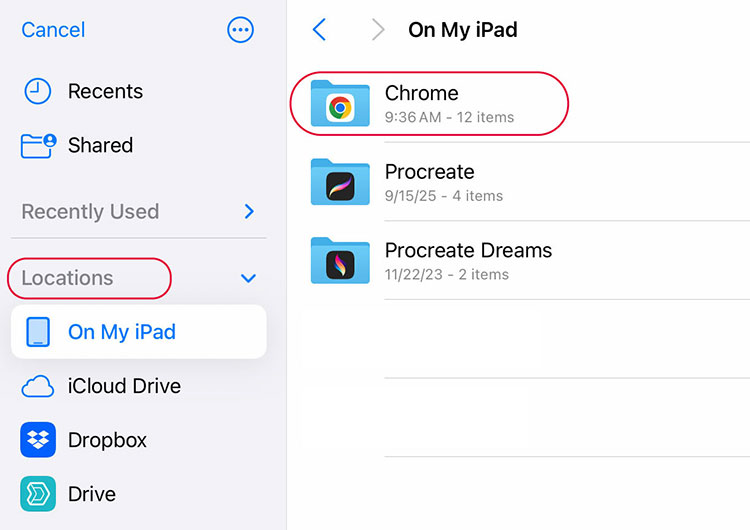
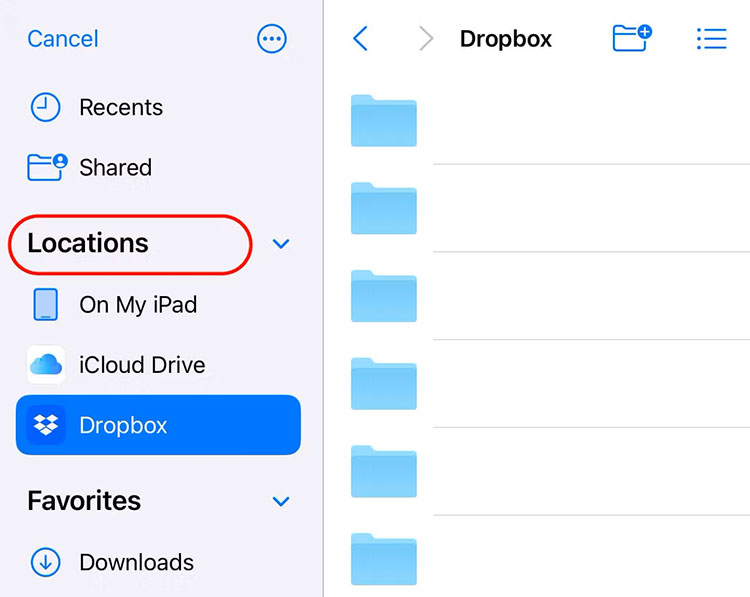
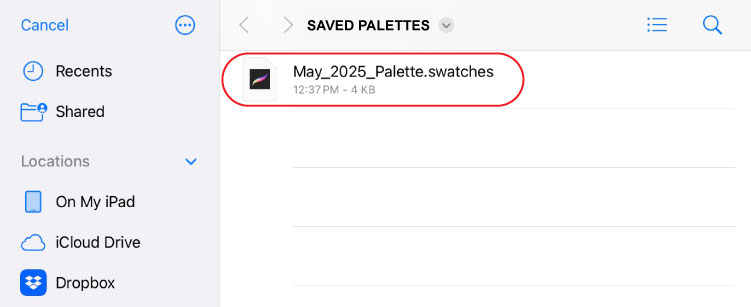
Choose the location where the .swatches file is saved.
Option A: If you downloaded the files directly to your iPad, under Locations, tap On My iPad, then tap the Chrome folder.
Option B: If you downloaded the files on your desktop then saved to iCloud Drive or Dropbox, locate the folder where you saved the file. In this case, my file was saved to Dropbox, so it’s highlighted.
Step 4:
Tap on the .swatches file to import it.
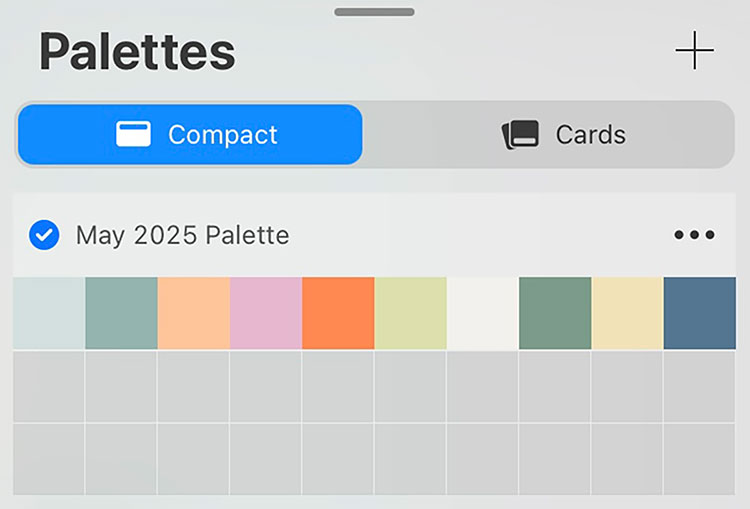
The palette should now appear in your Procreate Palette Library!
I hope you found this helpful! If you’d like to receive one of my curated color palettes every month, be sure to sign up for my email newsletter below. Also, if you struggle with creating cohesive color palettes of your own, you can check out my color palette course where I share the exact technique I use to create perfect palettes for digital art.
Enjoy!
xo
Gia